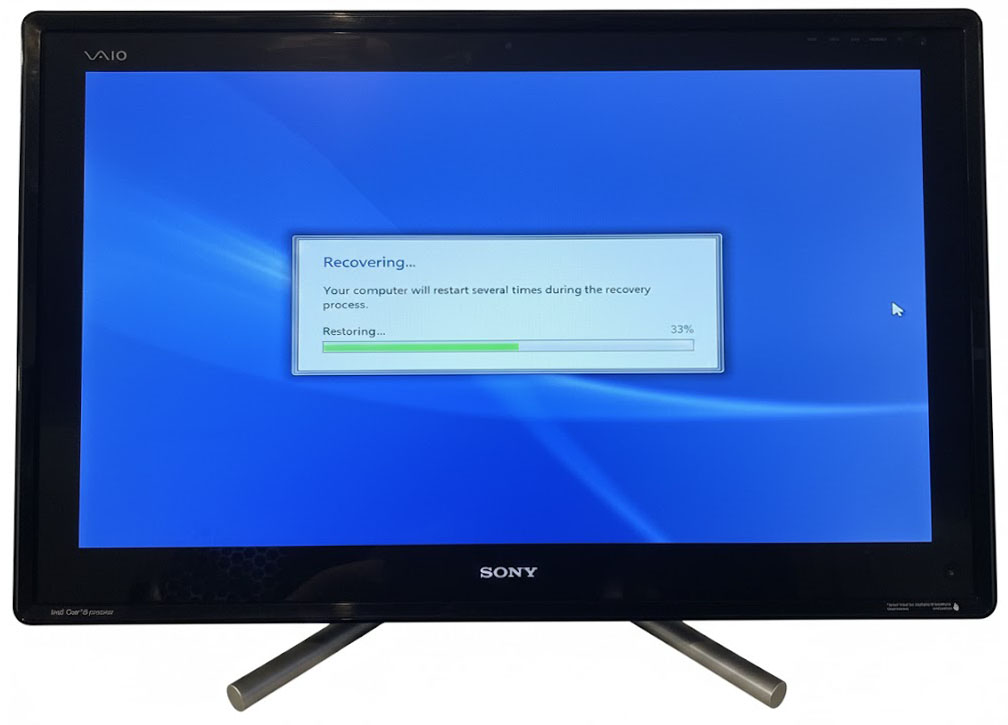
This tutorial documents the correct, proven method to enter Sony VAIO factory recovery on the VPCL222DFX (Windows 7 64‑bit, touchscreen), including behavior after a hard‑drive clone.
Model
- Sony VAIO VPCL222DFX
- All‑in‑One (AIO) Desktop
- Touchscreen
- Original OS: Windows 7 64‑bit
Background (Important Context)
On many Sony VAIO systems, factory recovery is fragile. It can stop working if:
- The hard drive is cloned
- Partitions are resized or moved
- Windows boot repair is run
- Another OS is installed
However, on the VPCL222DFX, factory recovery can still work after cloning if the recovery partition and Sony bootloader remain intact.
The key detail is how the recovery key is pressed.
Common Misconceptions
❌ Tapping F10 briefly does NOT work reliably on this model
❌ Using Windows recovery options will NOT launch Sony factory restore
❌ The ASSIST button may do nothing after a clone
✔ Holding F10 continuously from power‑on is the correct method
Confirming Recovery Is Still Possible
Factory recovery will still work if:
- The original recovery partition still exists
- The disk was cloned sector‑by‑sector or without deleting hidden partitions
Factory recovery will NOT work if:
- The recovery partition was deleted
- The drive was repartitioned manually
- The disk was converted to GPT/UEFI
Exact Procedure: Entering Factory Recovery (WORKING METHOD)
Follow these steps exactly.
Step‑by‑Step
- Shut down the system completely
- Not sleep
- Not hibernate
- If unsure, unplug power for 10 seconds, then reconnect
- Place one finger on the F10 key
- Press and HOLD F10
- Do NOT tap
- Do NOT release early
- While holding F10, press the Power button
- Continue holding F10 for 10–20 seconds
- Release only when you see one of the following:
- “VAIO Recovery Center”
- “Windows is loading files…” (white text on black screen)
If Windows starts normally, the key was released too early — try again.
Why Holding F10 Works (Technical Explanation)
On the VPCL222DFX:
- The Sony recovery bootloader checks for continuous F10 input during POST
- A quick tap may be ignored
- The timing window is longer than standard BIOS boot menus
This behavior remains functional even after a disk clone, as long as the bootloader and recovery partition are intact.
Using the Recovery Menu
Once inside VAIO Recovery Center:
- Select Restore Complete System
- Choose Restore C: Drive
- Select Factory Condition
- Confirm all warnings
⚠ WARNING: This erases all data on the internal drive.
Touchscreen Behavior During Recovery
- Touchscreen input may not work in recovery
- This is normal
- Use a USB keyboard and mouse
Touch drivers are installed automatically after Windows completes setup.
After Recovery Completes
- The system will reboot multiple times
- First boot can take 10–30 minutes
- Do not interrupt the process
When finished, the system is restored to:
- Windows 7 64‑bit (factory image)
- Sony drivers (including touchscreen)
- VAIO utilities
- Working recovery partition
Strong Recommendation (After Recovery)
Immediately create recovery media:
- Open VAIO Recovery Center
- Choose Create Recovery Media
- Use DVDs or a USB flash drive
This protects against future drive failure or cloning issues.
If F10 Does NOT Work
If holding F10 fails:
- The recovery partition is likely missing or corrupted
- Factory restore via keyboard is no longer possible
At that point, options are:
- Sony recovery discs (model‑specific)
- Community‑archived recovery ISOs (patched)
- Clean Windows 7 install with drivers
Summary
✔ Model: Sony VAIO VPCL222DFX
✔ OS: Windows 7 64‑bit
✔ Key Method: HOLD F10 from power‑on (do not tap)
✔ Works even after disk cloning if recovery partition remains
This method has been confirmed working on a cloned disk.
Share Your Two Cents