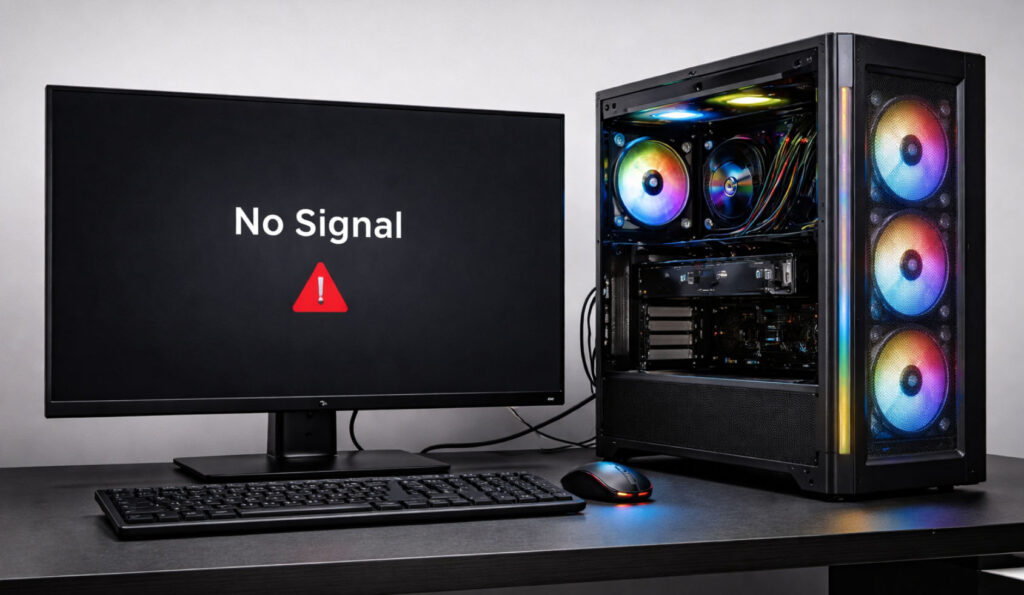
This step-by-step troubleshooting process is for a desktop PC that powers on but shows no video output, including blank screen, no signal, or no BIOS/POST display. It begins with basic hardware checks and advances to deeper diagnostics involving GPU, RAM, BIOS/CMOS resets, firmware compatibility, and potential motherboard or CPU issues methodically evaluating every potential cause.
PHASE 0 — Define the failure clearly (don’t skip)
Before touching anything, confirm:
☐ System powers on
☐ CPU fan spins
☐ Case fans spin
☐ No BIOS splash
☐ Monitor shows “No signal” / black screen
If nothing powers on, this is a power-on problem, not a no-video problem — stop here.
PHASE 1 — Eliminate monitor & cable issues (fast + critical)
- Confirm monitor works
- Test monitor + cable on another system
- Or test a known-good monitor on this system
- Correct input selected
- HDMI ≠ DisplayPort
- Auto-input often fails on POST
- Use one cable only
- No adapters
- No KVM
- No docks
☑ If still no video → continue
PHASE 2 — Determine where video should come from
This step prevents chasing ghosts.
A. Check CPU model
- CPU with iGPU → motherboard video ports may work
- CPU without iGPU (KF / F / Xeon) → motherboard ports will NEVER work
☐ If CPU has no iGPU → you MUST use a discrete GPU
☐ If CPU has iGPU → GPU can be removed for testing
PHASE 3 — Strip system to minimum POST state
Remove all non-essential parts.
System should contain ONLY:
- Motherboard
- CPU + cooler
- ONE RAM stick
- GPU (ONLY if CPU has no iGPU)
- PSU
Remove:
- SSDs / HDDs
- USB devices
- RGB hubs
- Front panel USB (leave power switch only)
This removes 80% of silent POST failures.
PHASE 4 — Power connections (MOST COMMON FAILURE)
Do not assume anything is connected correctly.
1️⃣ CPU power (EPS)
☐ Correct cable: CPU / EPS, not PCIe
☐ Fully seated 8-pin (4+4)
☐ Optional secondary CPU power connected if available
⚠️ A missing or wrong CPU cable causes:
- Fans spin
- LEDs light
- NO VIDEO
- No beeps
2️⃣ GPU power (if present)
☐ All required PCIe connectors attached
☐ No loose pins
☐ Avoid daisy-chained connectors if possible
3️⃣ 24-pin motherboard power
☐ Fully latched
☐ Reseat it (don’t trust appearance)
PHASE 5 — Clear firmware state (mandatory)
This removes:
- Bad CPU undervolts
- Bad RAM training
- Wrong GPU priority
- Broken BIOS settings
CMOS reset
- Power off PSU
- Unplug from wall
- Remove CMOS battery
- Wait 10 minutes
- Reinstall battery
- Power on
☐ Do NOT skip this step
PHASE 6 — Memory sanity check
- Use ONE stick only
- Use motherboard-recommended slot (often A2)
- Reseat firmly
- Try each stick individually if more than one
Bad or badly seated RAM can block video before BIOS.
PHASE 7 — GPU sanity check (if required)
If CPU has no iGPU:
- GPU in top PCIe x16 slot
- Reseat GPU
- Confirm PCIe latch clicked
- Try different GPU if available
If CPU has iGPU:
- Remove GPU completely
- Use motherboard video output
PHASE 8 — Firmware compatibility (silent killer)
Common with:
- New CPUs
- New GPUs
- Older motherboards
- First-revision boards
☐ Board may POST electrically but fail to initialize video
Solutions:
- Update BIOS
- Use BIOS flashback / Q-Flash / USB Flash if no video
- Use older known-compatible GPU temporarily if needed
PHASE 9 — Look for POST feedback
Check for:
- Debug LEDs
- Beep codes (attach speaker if possible)
Patterns matter:
- Stops on CPU → power / socket / BIOS
- Stops on DRAM → RAM or IMC
- Stops on VGA → GPU or BIOS init
PHASE 10 — Advanced (only after everything above)
☐ Inspect CPU socket pins
☐ Reseat CPU
☐ Remove board from case (rule out short)
☐ Breadboard on cardboard box
Frequent causes of no-video (memorize these)
- Missing CPU power = no video
- Wrong cable = same result
- KF / F CPU = motherboard ports useless
- Bad BIOS = GPU never initializes
- Fans spinning ≠ system POSTing
Final Tips
Never troubleshoot by assumption.
Always troubleshoot by elimination.
Share Your Two Cents